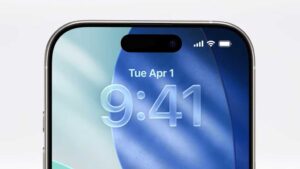
Apple released iOS 26 a few months ago. And with it, a slew of new features and transparency that no one asked for. As if a small handheld display was hard enough on the eyes, this new iOS26 LiquidGlass (more like Ass than Glass) defines the arrogance of change for you, whether you wanted it or not.
Let me explain that some are questioning why the move or jump from iOS 18 to iOS 26? Plans of the leadership at Apple! Make it less confusing for already their dumbing down of customers, to make the iOS and MacOS on the same number (a year! how clever! Wait, Microsoft has been doing that. So has EA Sports games! )
So yes, you noticed, iOS 26 (for 2026, but released in 2025?).
Now, let’s just go to settings and turn off some, but not all, of the new features, shall we?
Reduce transparency in IOS:
Open the Settings app, scroll down and tap on Display & Brightness. Now tap on Liquid Glass.
Choose from Clear or Tinted. Choose the second option to limit Liquid Glass. Apple says, “Clear is more transparent, revealing the content beneath. Tinted increases opacity and adds more contrast.”
Choosing this change won’t walk your iPhone back to the look of iOS 18. Backgrounds in pop-up windows are much less clear, but they aren’t completely opaque.
Open the Settings app on your iPhone and head to Accessibility > Display & Text Size, then enable the toggle next to Reduce Transparency. You’ll notice that this immediately cuts out a lot of the glass-like effects in iOS 26, such as the translucent Dock and app folders.
Disable Large ScreenCapture Previews:
Open the Settings app and navigate to General > Screen Capture and disable the toggle next to Full-Screen Previews. From now on, you’ll go back to seeing the miniature preview in the corner of your iPhone whenever you take a screenshot.
Disable Background in Messages:
Select Settings -> Apps > Messages, then find the Conversation Backgrounds toggle and disable it. This will restore the plain white background from before iOS 26 on all your threads.
Spatial Scenes in Lockscreen and Photos:
Start off by long pressing your Lock Screen, then tapping Customize. To the left of the … button should be a hexagonal icon that contains a landscape scene – tap it to disable the effect. You can do this with other images by tapping the background thumbnail in the bottom-left, selecting Choose Photos, then picking an image and tapping the same hexagonal icon to disable the Spatial Scene.
To prevent Photos from turning your images into Spatial Scenes in the first place, open the Settings app and go to Apps > Photos, then scroll to the bottom and disable the toggle next to Control for Creating Spatial Photos.
Call screening and call waiting:
Spam calls – Apple has taken steps to combat them in iOS 26. In the form of call screening—which forces unknown callers to identify themselves before they get though to you, giving you the option to decline the call—and call waiting, which sits on hold on your behalf before ringing back when you’re through to a human.
You might decide that these features aren’t right for you. If you don’t get much spam (Ha!) and would rather not inconvenience people calling you, you might want to disable call screening, for example. (Note that it only works on unknown callers, so your family and friends would probably never encounter it.) Thankfully, that’s easy to do in iOS 26.
To turn off call screening, open the Settings app and head to Apps > Phone. Scroll down to the Screen Unknown Callers section and tap Never. Alternatively, you can choose to silence calls from unknown numbers completely and send them to voicemail, or just stick with Ask Reason for Calling.
For call waiting, you’ll find options for this in the same Phone menu. Next to Detect Call Waiting, simply disable the toggle to deactivate the feature.
Classic Look in Phone calls:
Change from Unify to Classic via the three lines in upper left. Open the Phone app and select the menu icon at the top right of the screen. In the window that pops up, check the “Classic” option. Your app should now change back to the older (less transparent) look.
Change the App Icons
App icons in the Liquid Glass look lose their individual colors and become more uniform, hindering easy identification and readability. Here’s how to change that.
Press and hold on your Home Screen. Tap the “Edit” icon in the top-left corner. Choose “Customize” from the dropdown menu. For the classic look, click the “Default” option. Your icons should revert to the way they were.
Finally a Tidbits primer on how to turn off Liquid Glass and its effects!
(Thanks to Macworld’s Alex Blake; Louis Roundtree @ Appletoolbox, via Google search, for these tips)
